How to send WhatsApp messages from Excel with Prime Sender
March 28, 2026 · 12 min read

1. Put the numbers you want to message in the first column. Optionally add more columns for personalization.
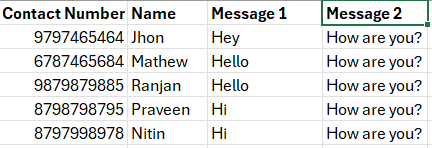
2. Open the Prime Sender extension, click Upload, and select your Excel file.
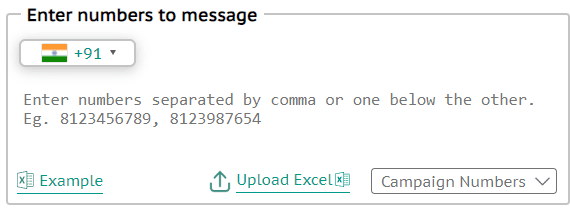
3. Uploaded numbers appear in the numbers area.
4. Enter your message and click Send—the rest of the flow is the same as a normal campaign.