How to send personalized bulk WhatsApp messages with Prime Sender
March 28, 2026 · 12 min read
Promotions and order updates convert better when each message feels personal. Here’s how to send customized WhatsApp messages with Prime Sender.
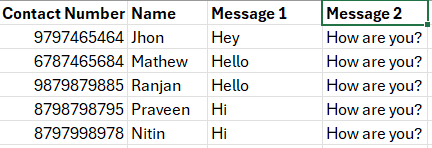
Add the details you want to personalize—alongside each contact number. For example: name and a custom note. Row 1 is always column headers (Contact numbers, Name, Message, etc.).
Important: the first column must always be contact numbers. Other columns can be anything, in any order.
Need help with Excel uploads? See our Excel to WhatsApp guide.
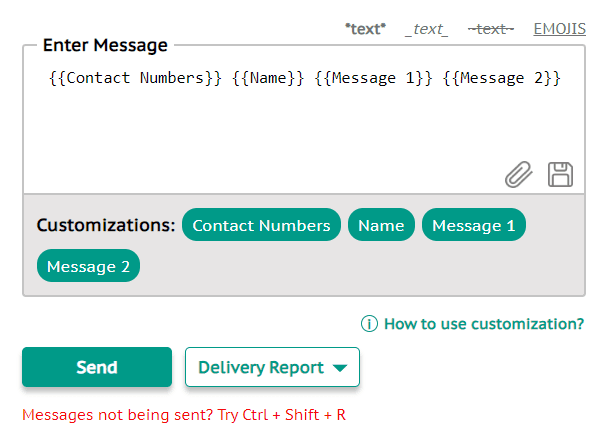
When the sheet is ready, choose “Send Customized Message” at the top, upload the file, and messages go out to each customer.

Then pick which custom columns to insert from the options below.